
Since vSphere 5 was released earlier this year, it is now time to get ready to pass the VCP exam. I am a VCP for both 3.5 and 4, and decided I would post some updates along the way as I study before taking the VCP 5 exam.
The first thing I did was create a lab environment. I currently use 2 whitebox ESXi 5 servers, attached to iSCSI storage.
However, since I am studying VMware products, I don’t want to configure, and reconfigure these 2 ESXi servers constantly. Thankfully, I can run Nested ESXi Servers – or, run ESXi 5 inside of ESXi 5. I can even run 64bit guests inside of my virtualized ESXi servers! See below:
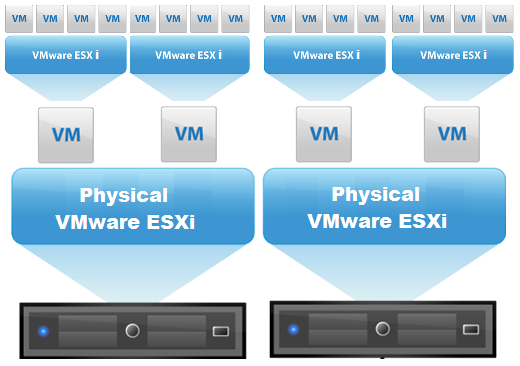
Now, I can run more than 2 ESXi servers, and blow them away and recreate if needed. (yes, it will be slow).
In order to run ESXi 5 inside of ESXi 5, there are a couple of steps we need to do:
First, we will need to add a line to the etc/vmware/config file. Using SSH to connect to your ESXi server, type the following:
echo ‘vhv.allow = “true” ‘ >> /etc/vmware/config
Second, we need to make sure the networking is setup properly. On each host, for your VM Network, enable promiscuous mode for the port group.
- click Configuration
- click Networking
- click Properties for your vSwitch with the VM Network (assuming your haven’t renamed”
- Click “VM Network” and choose Edit.
- Click Security
- Check Promiscuous Mode and choose Enable.

Next, create a VM for each ESXi host with 2CPUs, and at least 4GB of RAM. When creating the VM, make sure that it is version 8 HW, and that for the operating system you choose “other” and select “Other (64 bit)”. Once the VM is created, we will choose to edit it’s settings. In the Options tab, you can now change the OS to “VMware ESXi 5.x”
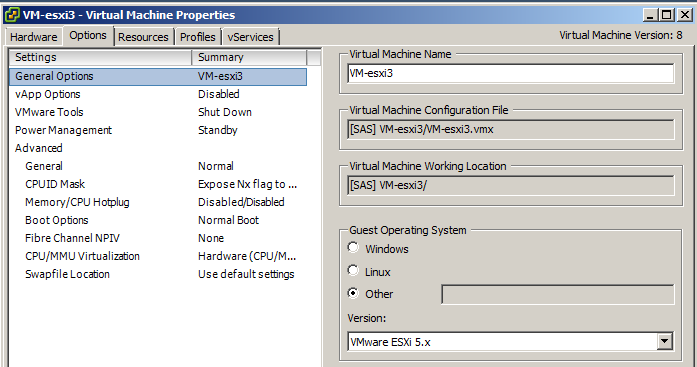
Last, we need to make sure that under “CPUID Mask” that we expose the NX/XD Flag to the guest if it is not already.
Now, you can power on the VM, and install ESXi 5 from an ISO image.
Once installed, you can then create 64bit guests inside of your virtual ESXi server.
VMware Workstation 8
The best thing about VMware, is I can also virtualize ESXi inside VMware Workstation! So on my laptop, in VMware Workstation, I can run multiple ESXi servers, that in turn have VMs inside them. Even better is the fact that I can have 64bit guests inside my ESXi servers running inside VMware Workstation. Sounds confusing as I type, so here’s a diagram:
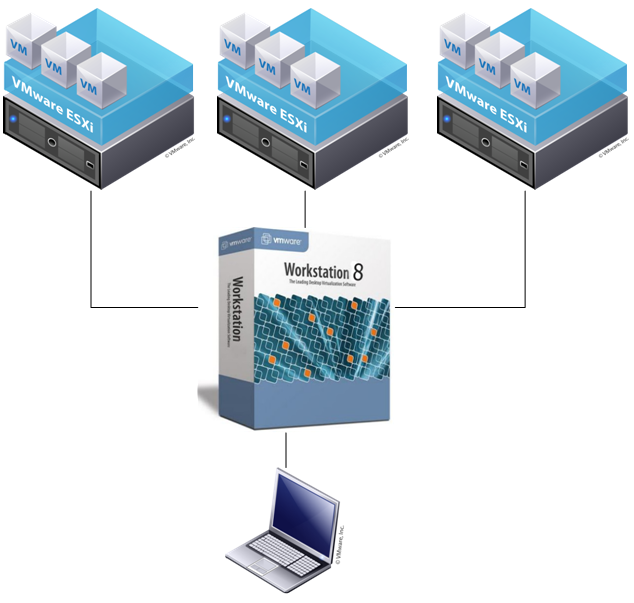
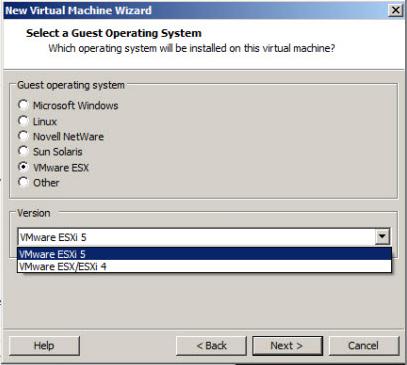
In order to run ESXi inside VMware workstation, we simply need to select “VMware ESXi 5” as the operation system of the guest VM we are creating.
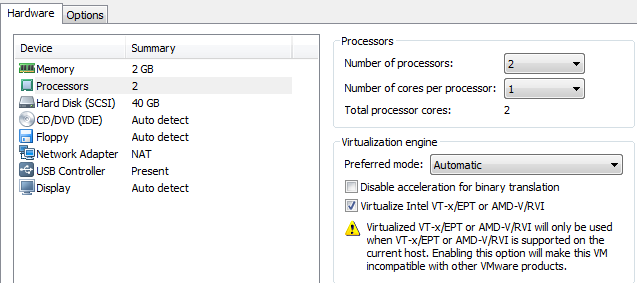
Then, Edit the VM’s Settings, and under the Hardware tab, and processors, check the box to Virtualize Intel VT.
The option to run ESXi inside of VMware workstation is great, especially for when you don’t have a lot of physical hardware to test with.


Nice. Can it help to overcome some ESXi free version limitations? 😉
Not really – because the features and restrictions are all based on the license that is entered.
“Longmode is disabled for this virtual machine.”
I could use some expertise here. I’ve verified my CPU supports longmode, 64 bit, VT/ExecuteDisabled (enabled in BIOS).
Added vhv.allow = “true” to ESXi host config and verified–rebooted Esxi too.
ESXi 5 installs fine on Workstation 8. When I attempt to install server 2008 64-bit I get the message above “longmode…”
My only thought at this point is perhaps I need to add the same “vhv.allow” command to the ESXi guest OS.
Any ideas?
Under the Virtual Machine settings, select “Processors”. On the right, under “Virtualization Engine”, make sure and check “Virtualize VT-x…………..”
That should resolve the problem of your ESXi guests.
Pingback: VCP5 Passed! @ Adam Bonny
Hey…I done this…it works fine…but i want to test HA & DRS, can u pls suggest the best guest OS to run on nested ESXi5, as other OS took long time install and operate…Thanks
Vikram,
I usually run Server 2008 R2 for all my Windows VMs. I’m assuming this is what you are asking – but I am not sure what you mean by “Other OS took long time to install”. Are you choosing “Other OS” for your guest operating system during the new VM creation wizard, and then installing Windows or Linux? If so, make sure to choose the OS from the Create new VM wizard – however, this will not decrease the time it takes to install by much.
Pingback: Nesting Hyper-V… « Wi-Fi Castle
I’ve got this working with two ESXi 5 VMs under Workstation 8, with a bit of a caveat: It doesn’t appear to be possible (perhaps it once was) to virtualize VT-x/EPT through Workstation 8 to ESXi 5, in order to enable VT/replay for FT. Have you ever tried this? Any idea if there is a way around this in Workstation?
Mark,
I will look into this when I get a chance and let you know what I find. I believe FT is possible in a nested environment.
Thanks, Tim. Having a weird problem, though, with networking.
My ESXi physical host (Hextor, 192.168.1.5) has two virtual ESXi hosts, esx01 (192.168.1.201) and esx02 (192.168.1.202). On esx01 I then imported the OVF template for the VCA and assigned it IP 192.168.1.205. The VCA can’t see anything on my network beyond esx01, though. I can’t ping from VCA to Hextor or to my default gateway (1.1), but I can ping from VCA to esx01. I’m assuming it’s routing related rather than a VMware issue but I can’t quite see it. Did you have this problem with your lab?
Yes, It looks like I forgot a step. I will update the article. You have to enabled promiscuous mode for each host.
Go to Configuration, Networking.
Click Properties for the vSwitch
Select the portgroup and choose ‘edit’ and ‘security’
Set ‘Promiscuous Mode’ to Accept
Bingo, that does it!
Thanks, Tim. I’m trying to get my VCP-5 exam done before I forget everything I don’t use every day.
Good luck!
Tim, any idea of the minimum RAM needed to run a nested ESXi VM? I know you said 4 above but was looking to nest a ESXi VM running 1ea 512mb Win 2008 Servercore install. Think I could get away with 2gb total allocated to the nested ESXi VM? Thanks.
I think you should be fine. You may be able to drop a little lower. Just watch out for swapping, as you will get a big slowdown. Just pay attention to the nested ESXI servers memory information – and adjust if needed.
Pingback: نصب ویندوز سرور 64 به وسیله vsphere
Pingback: V Center 5 - Some questions
Pingback: ESXi 5.1 Home Lab Initial Setup « JamesScanlonITKB
Hi,
First I would like to thank on great posts, keep it going.
I installed for testing/QA reasons nested ESXi 5.1 in ESXi 4.1. I’m testing vCloud system.
Why I have issues running 64 bit machine in my nested ESXi 5.1 ?
Why my x86 machines doesn’t recognize my VM network although all the settings are correct , I’m using same gateway for my ESXi 4.0 and ESXi 5.1 ?
Thanks
Make sure the your hardware VT support is enabled, and that you are exposing that to the guest (ESXi 5.1 VM). For the networking, Make sure that you have promiscuous mode enabled on your vswitch on ESXi (not the nested install) – this will allow your guest VMs inside the nested ESXi server to access your network.
I have not worked with nested using 4.1 – only 5.0 and above, so there may be some things that don’t work.
Muito obrigado, ajudou muito a instalar o ESXi 5 no workstation 9…
ta de parabéns.
abraço
Você é bem-vindo. Eu estou feliz que eu poderia ajudá-lo. – Translated by Google.
I am using ESXi 5.5 and following your instructions did not work. After doing more research, I had to add an additional command to make it work. So in addition to the command you provided:
echo ‘vhv.allow = “true” ‘ >> /etc/vmware/config
, I also had to add an enable variable by running the following command:
echo ‘vhv.enable = “true” ‘ >> /etc/vmware/config
Also, after you create the vESXi VM, you can go back to edit settings, and change the OS to “VMware ESXi 5.x”.
For 5.1 and above, there is no need to echo either command into the hosts /config file. See my instructions for running Nested ESXi on 5.1 here.
http://tsmith.cloudapp.net/2012/vsphere-5-1-lab-nested-esxi-5-1/
This also covers making the OS type change.
Hi TIM,
Can you please let me know what are the minimum requirements (memory, hard disk, CPU) to create nested environment on a physical server. Also, I have read that FT doesn’t work in nested ESXi environment as ESXI being 64 bit OS, is there any way we can enable FT in nested ESXI environment.
Yes, you can get FT to work in a nested ESXi environment – check out William Lam’s post here: http://www.virtuallyghetto.com/2011/07/how-to-enable-nested-vft-virtual-fault.html
Nested ESXi is not supported, so you can try different settings to see how low you can get. I would stay above 2GB RAM for each nested install, 1GB vmdk.
great site and feedback through the comments – hoping someone can help with my limited knowledge.. I have a laptop with Win7x64 running VM Workstation 10. I can install nested ESXi 5.5 hosts in Workstation and connect to these and configure with vSphere Client. My problem is creating guest VMs in these ESXi hosts. How can I access ISO images stored on my laptop? Final goal is to have Windows/Linux guest VM installed as guest on a virtual ESXi server nested in Workstation running off my laptop.
Glad you enjoyed the article! Easiest way to install a guest on the nested ESXi server is to use the client and connect to the nested instance, and make a new VM, and choose to mount an ISO file from the client – point to the local file – just as you would with a normal ESXi server.
You can also use the client to connect to the nested instance and browse a datastore, and upload the ISO to the nested storage.
Pingback: Building a Nested ESXi Home Lab | SIPALOOZA